
S Pen vector drawing on Samsung Galaxy Tab.
A free vector drawing app for Samsung Galaxy Tab with S Pen. Your pressure strokes stay editable vectors, and Studio Mode adds layers and shape tools on the same tablet.
Free · closed beta, not on Google Play yet · No account · Tested on Galaxy Tab S7 FE
The tools, in real drawings.
Screenshots of the app, not mockups. Each tool below comes with the names you will find in its menus, so you know where to tap.
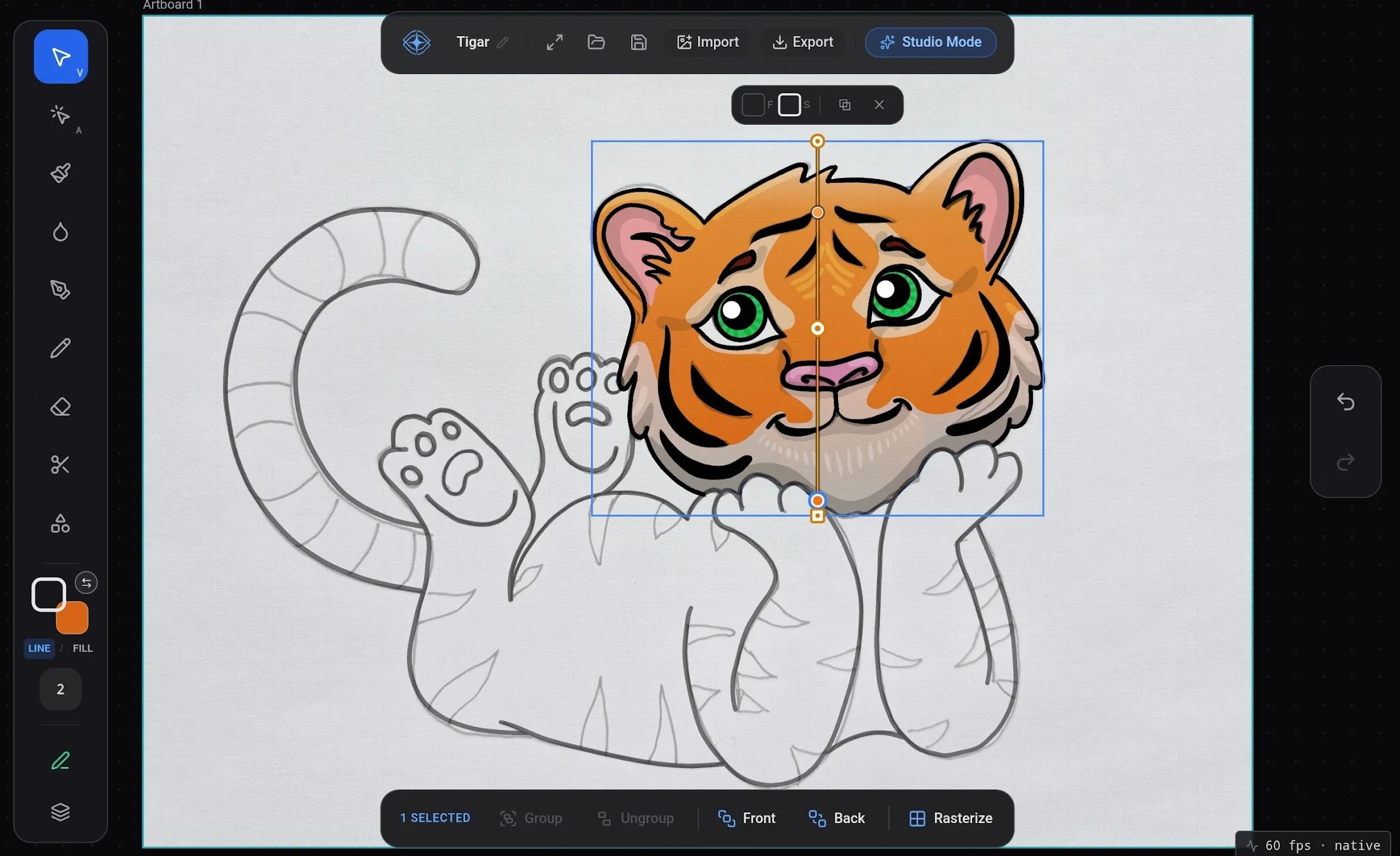
A quiet canvas for your pen.
A small dock and nothing else in the way. Simple Mode reads Samsung S Pen pressure, and every stroke is saved as an editable vector shape, not pixels. Tap any shape to select it and move it, or send it to the back.
- Pressure brushes:
Ink Pencil Sketch Charcoal Marker Highlighter - Stylus Only ignores finger touches. On the Tab, a finger swipe left no marks.
- Pinch to zoom and pan. Two-finger double-tap undoes, three-finger double-tap redoes.
Simple when you draw. Studio when you build.
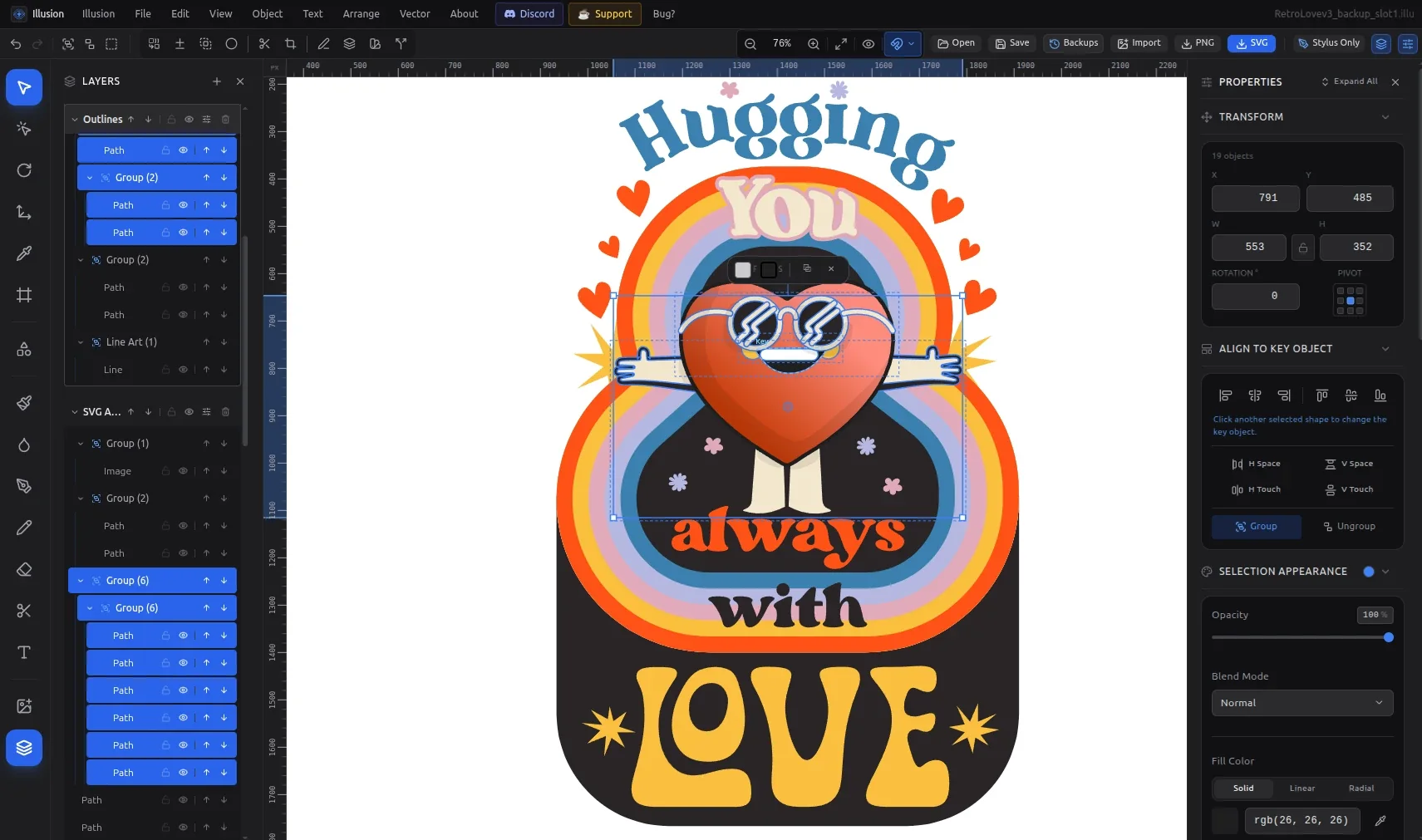
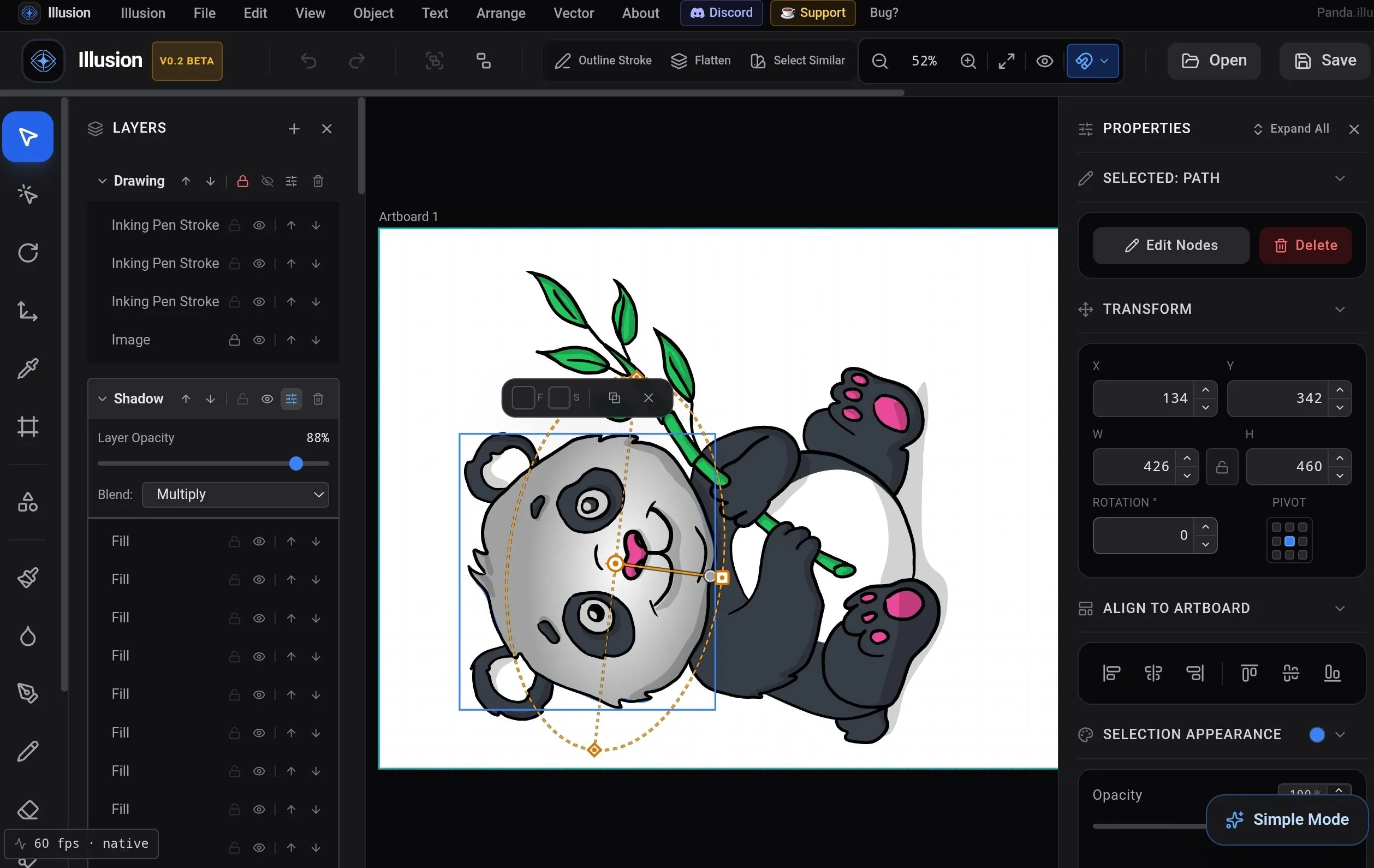
Switch to Studio Mode on the same tablet when the sketch becomes a piece. Menus, layers and a properties panel open around the canvas, with exact numbers for every shape.
- Layers with opacity and blend modes such as Multiply, plus lock and hide.
- Transform: X, Y, width, height, rotation and pivot.
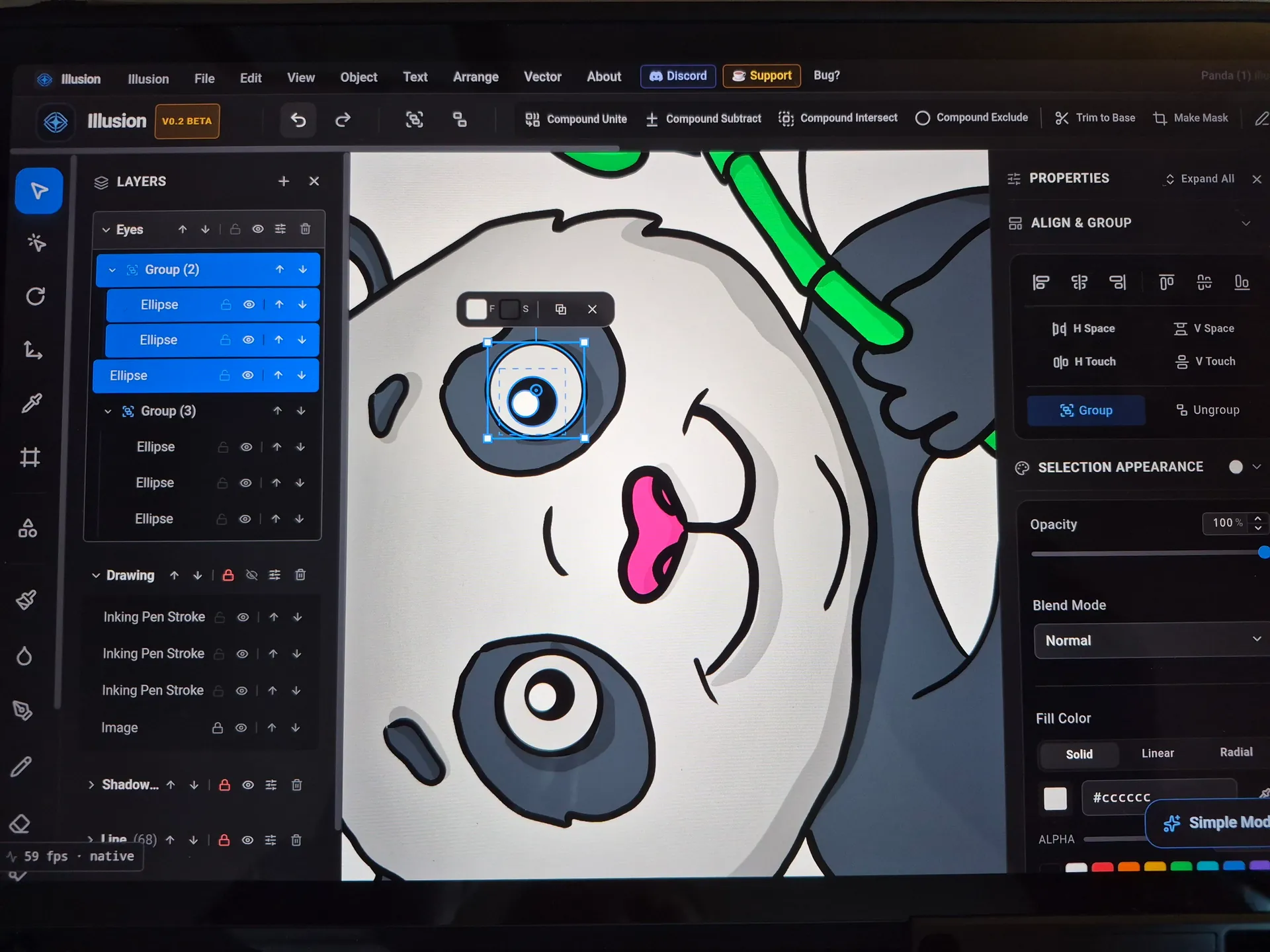
- Nested groups, clipping masks and Align to Artboard.
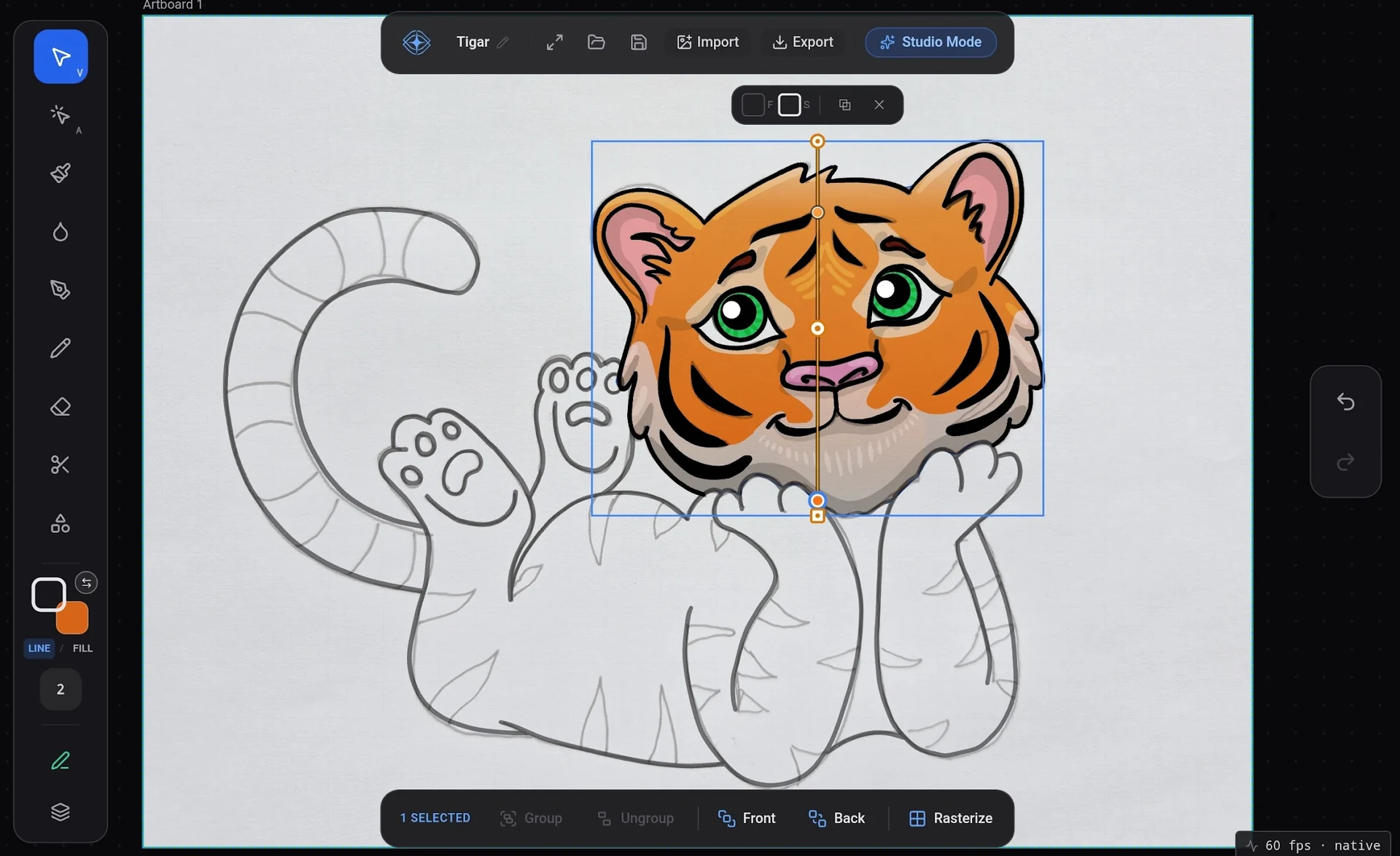
Every curve stays editable.
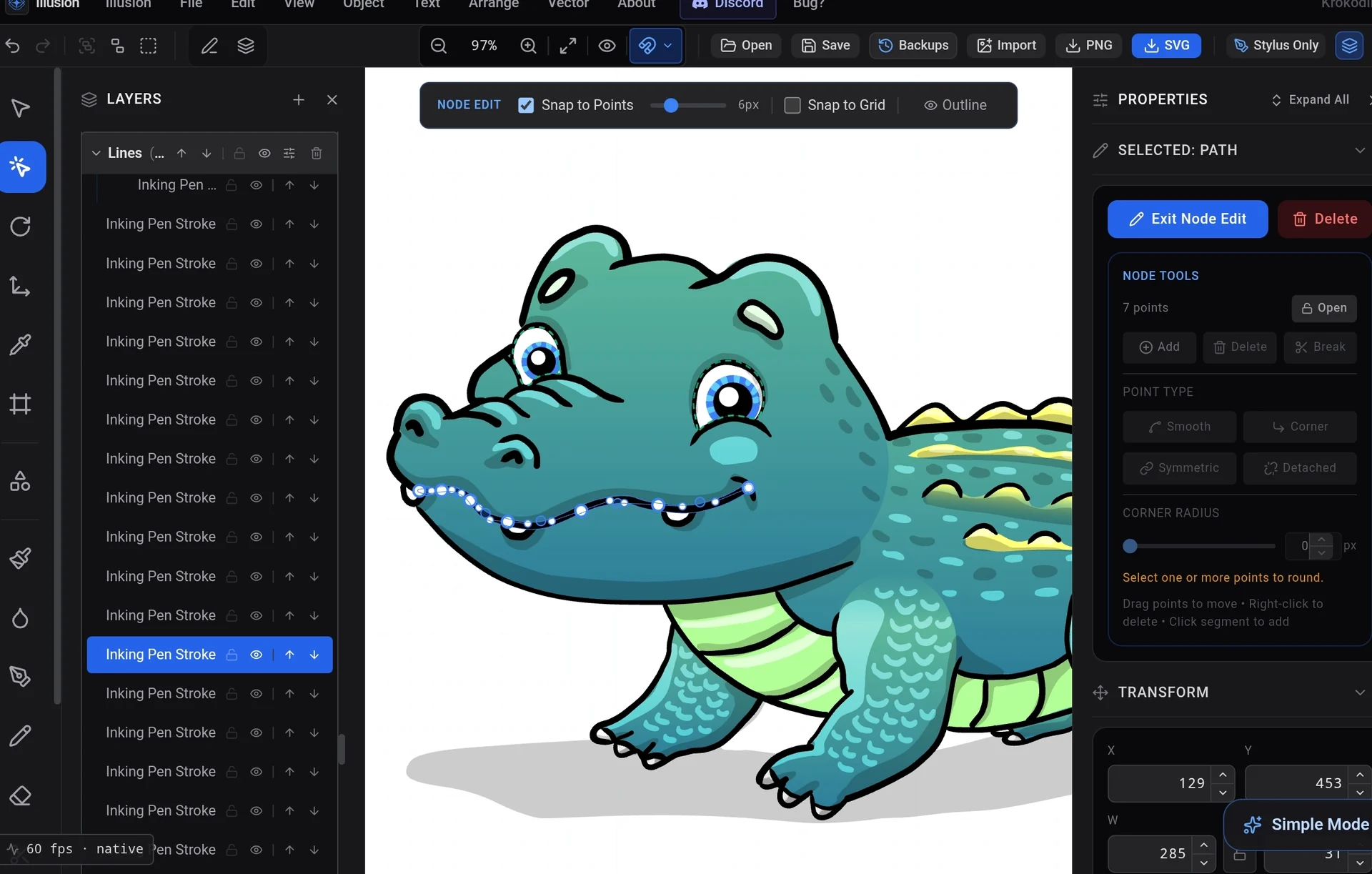
A pen stroke is a path, so you can fix it point by point instead of drawing it again. Open Node Edit and drag any point of the stroke with the S Pen.
- Node tools: Smooth Corner Break
- Snap to Points and Snap to Grid keep joins tidy.
- A Bézier pen tool for clean new curves next to your hand-drawn ones.
Gradients that bloom.
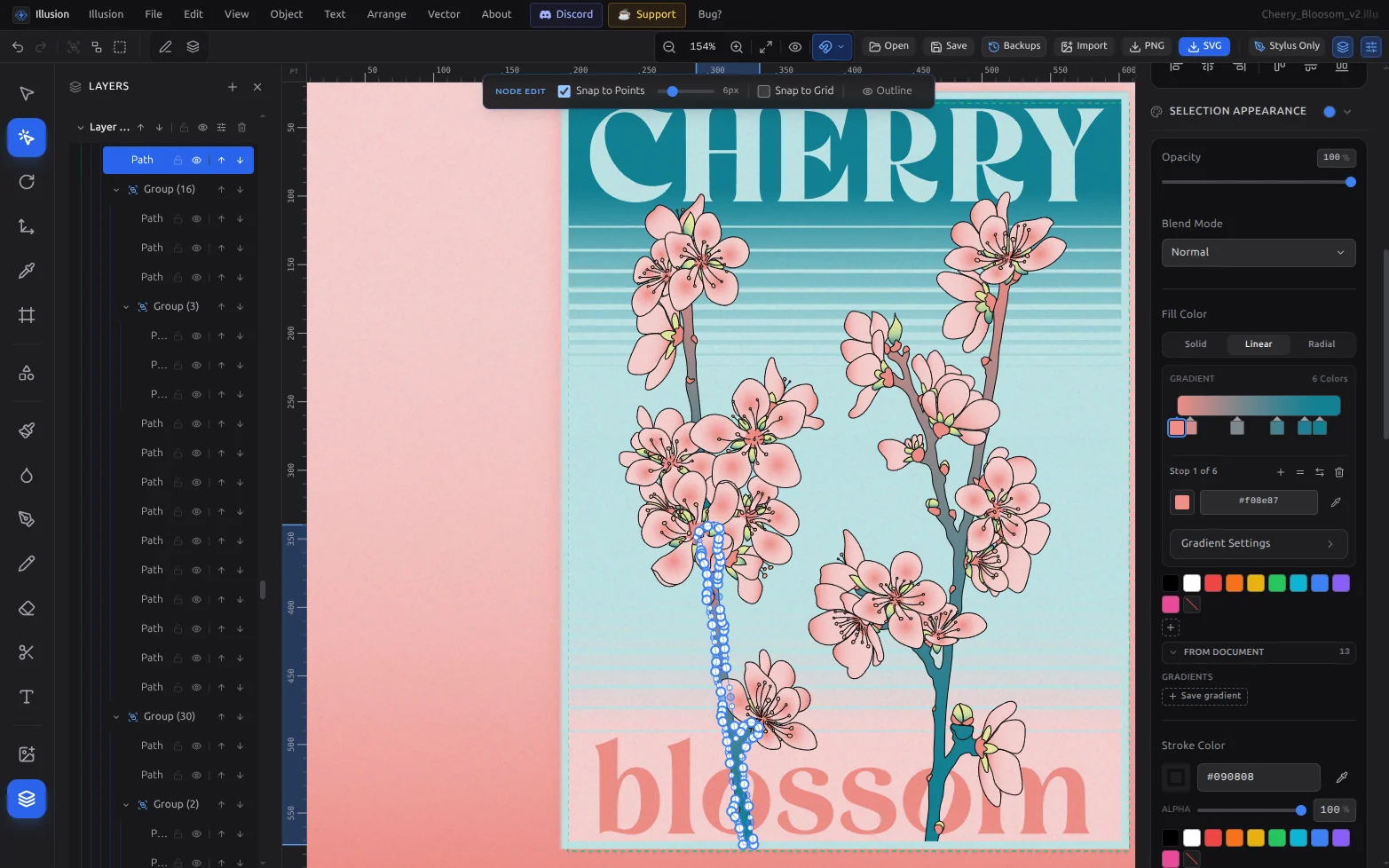
Linear and radial fills with colour stops, kept editable. Change a stop and the whole poster follows, and save a gradient you like for the next shape.
- Fill Color: Solid, Linear or Radial.
- Colour stops with exact hex values and alpha.
- Save gradient keeps it as a swatch in the document.
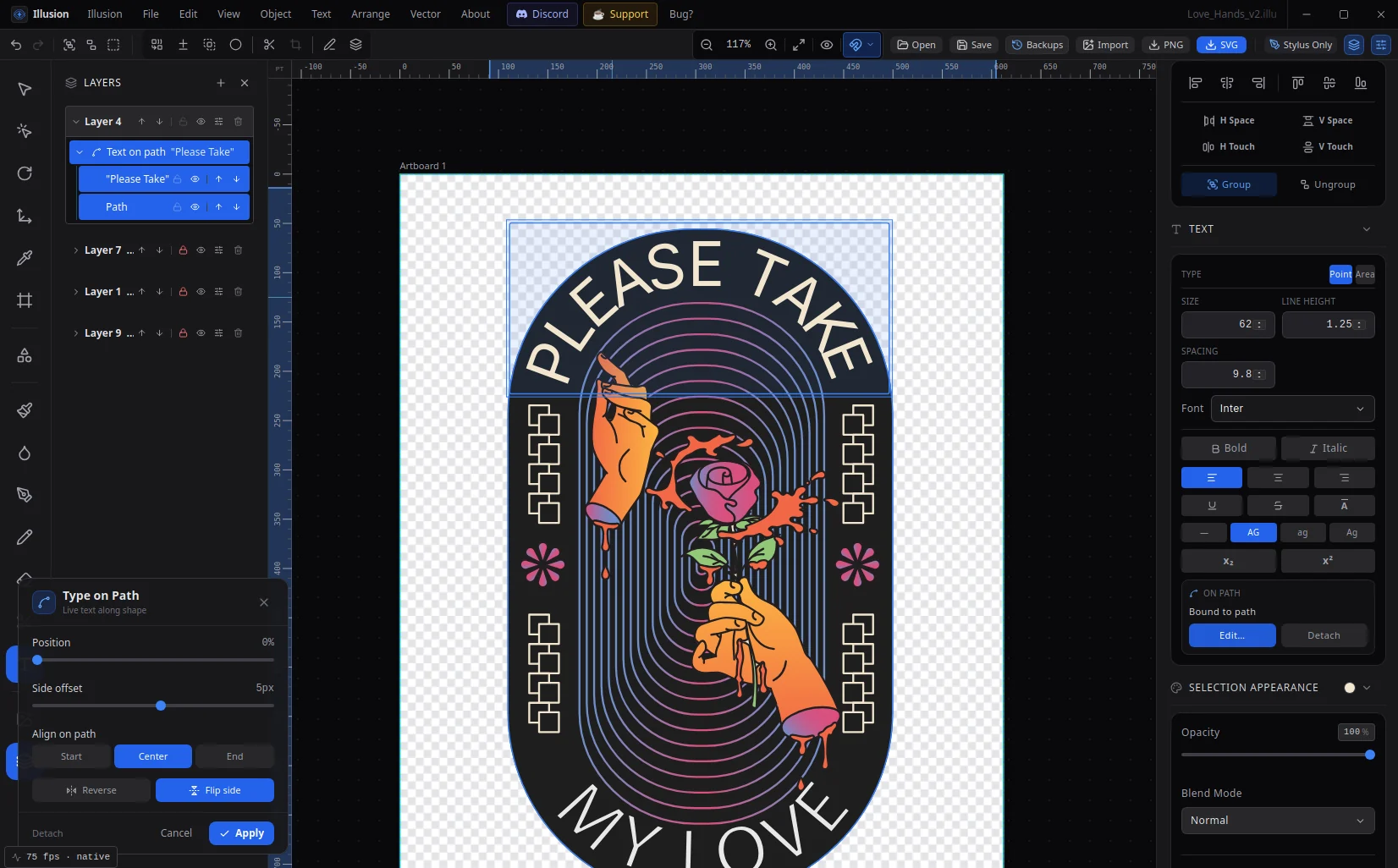
Lettering that bends.
Put text on any curve and it stays live text. Change the words, the font or the size later, and the lettering follows the path.
- Type on Path: position and side offset along the curve.
- Align on path: Start, Center or End.
- Reverse and Flip side for text under an arch.
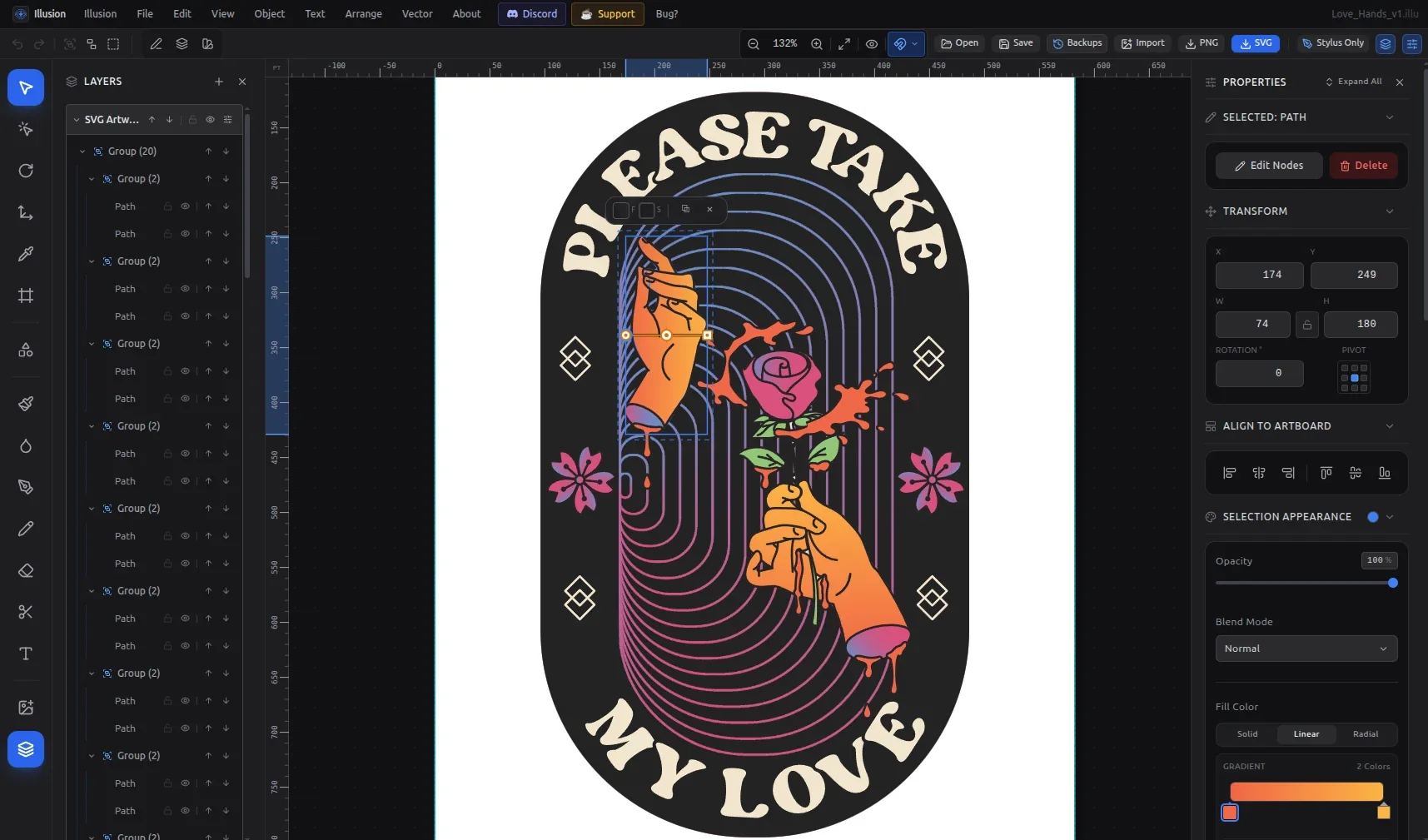
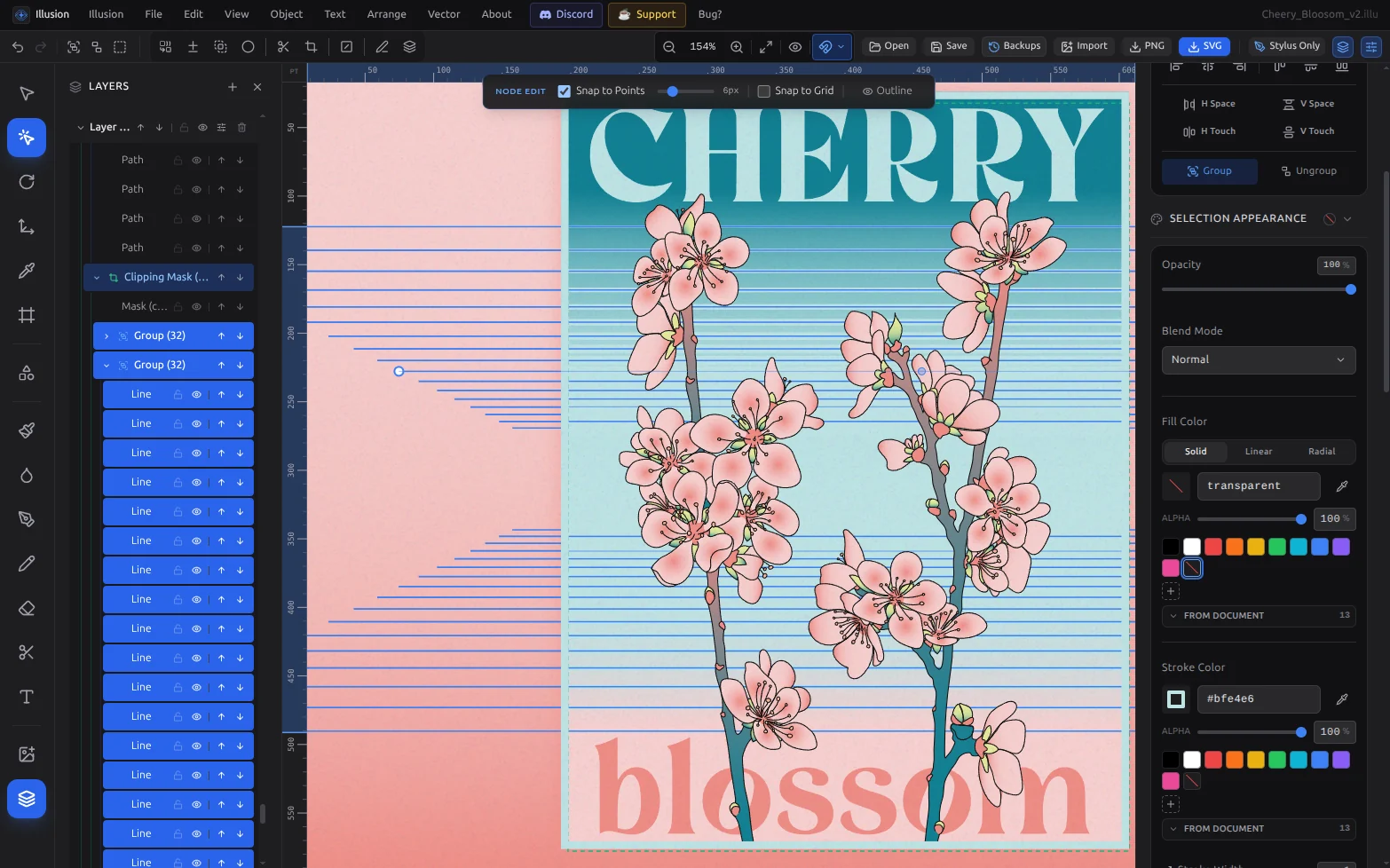
Draw two. Blend the rest.
Draw two lines, set the number of steps, and Illusion fills in the lines between them. Each step is an ordinary vector line in a group, so you can still edit any of them.
- Select two shapes, open Blend and set the steps (30 here).
- A Clipping Mask keeps the stripes inside the panel.
- Warp, offset, patterns, knife and a vector eraser live in the same Vector menu.
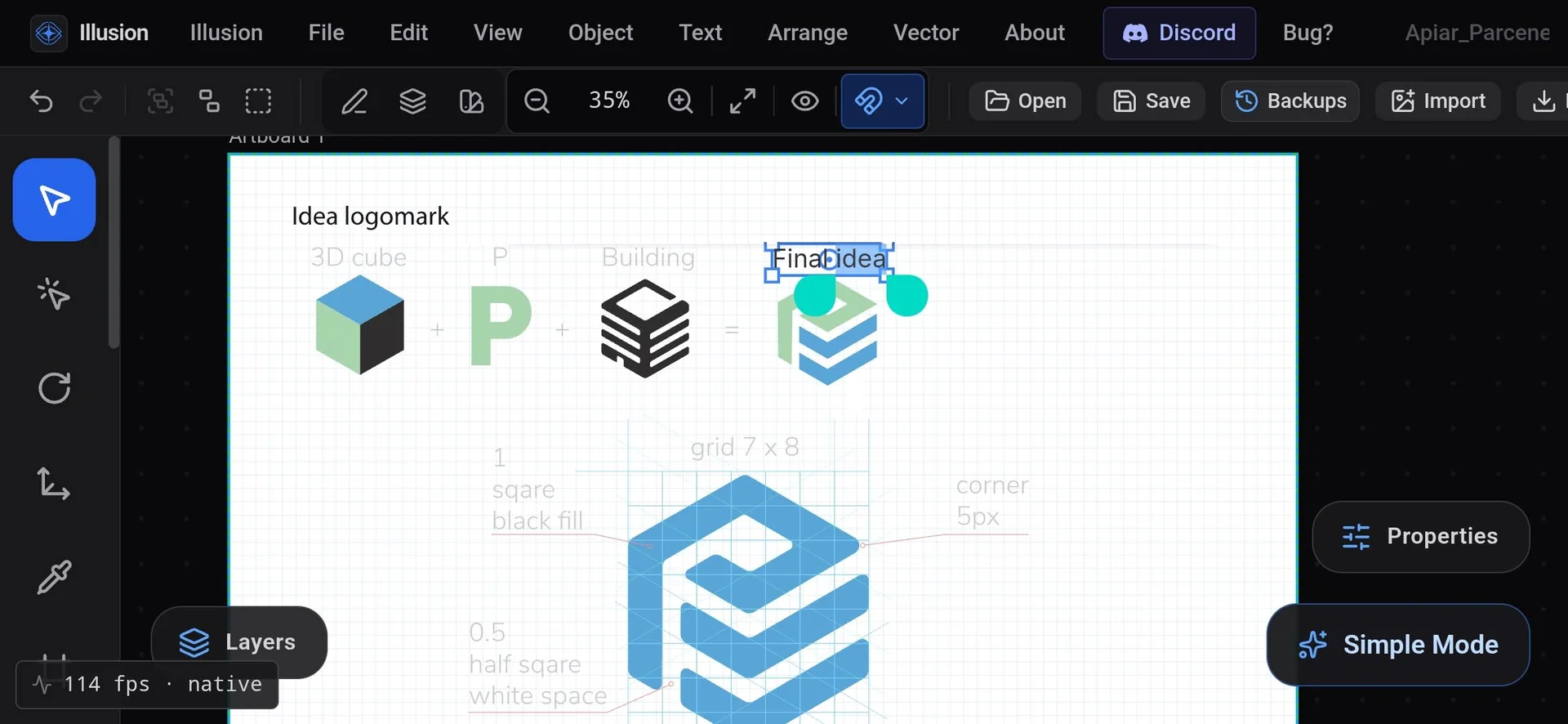
Client ideas, on the go.
The same studio runs on an Android phone. Build a client's logo idea on a grid while you're out, then finish it on the Tab or in the browser.
- One .illu file for phone, tablet and browser.
- Layers and Properties fold into buttons on the small screen.
Save it on the tablet. Open it in the browser.
Sketch in Simple Mode, keep going in Studio Mode, and save a .illu on the device. The web studio at illusion.quest/app opens the same file, including on Linux in Firefox or Chromium. More on vector editing on Linux, in the browser.
- 01 Sketch in Simple ModeRough out the idea with the S Pen on the Tab.
- 02 Finish in Studio Mode, if you likeLayers, shape tools and your S Pen strokes as editable vectors, on the same tablet.
- 03 Carry the file to a bigger screenSave through Android's file picker and move it like any file. Opening a Tab-made file in the browser is one of the things the beta is checking.
- document.json
- Shapes · layers
- swatches.json
- Palette · gradients
- media/…
- Image bytes
- thumbnail.png
- Preview
.illu is an ordinary ZIP. No account and no cloud sync: you move the file yourself.
Free export. No account.
Free browser export
SVG, PNG or RGB PDF from the web studio, without signing up, a subscription or an upgrade screen. On the tablet, export is part of the closed beta and testers are confirming it.
No account
Open the app and draw. No sign-up, no ads.
Your files stay yours
.illu files save on the tablet or in the drive you pick. The Android app has usage telemetry turned off.
What works, and what's not there yet.
Drawn and saved on a Tab S7 FE
Everything in this list was drawn and saved on a Galaxy Tab S7 FE.
- S Pen pressure in Simple Mode, saved as editable vectors
- Stylus Only: a finger swipe left no marks
- Studio Mode layers and shape tools
- Autosave and recovery are built in: .illu files save and come back on the device
Not there yet
- Not on Google Play yet: a closed test while Google's tester requirement runs
- Tested on one tablet so far. Other Galaxy Tabs with S Pen, and other brands' pens, are unconfirmed
- Strokes run in a web view, not Samsung's native inking engine: no tilt, hover or predicted strokes
- PDF export is RGB. CMYK separations and PDF/X are not available
Draw with S Pen.
Join the beta.
Three steps, about two minutes. If you have a Galaxy Tab other than the S7 FE, you're the tester we need most.
-
01
Join the Google Group
Use the Google account you use for Play on the tablet, then click Join group: https://groups.google.com/g/illusion-beta
Join illusion-beta -
02
Accept the test on the Tab
Open the Play test page on your Galaxy Tab and tap Become a tester: https://play.google.com/apps/testing/app.illusion.quest
Open the Play test -
03
Install from Play, keep it 14 days
Install from the Play Store, not an APK file, and keep it installed for 14 days. Google needs testers to keep the app for 14 days before Illusion can launch for everyone.
Questions, bugs, drawings
The Illusion Discord is for announcements and for sharing work and ideas. Post your drawings on r/IllusionVector.
Join the DiscordIs there a vector drawing app for Samsung tablets with S Pen?
Yes. Illusion is a vector drawing app for Samsung Galaxy Tab with S Pen. In the closed beta, Simple Mode reads S Pen pressure and saves each stroke as an editable vector shape. It has been tested on a Galaxy Tab S7 FE.
Is Illusion on Google Play?
Not yet. The Android app is in a closed Google Play test. To join, use the Google account you use for Play on the tablet to join the illusion-beta Google Group at https://groups.google.com/g/illusion-beta (illusion-beta@googlegroups.com), open https://play.google.com/apps/testing/app.illusion.quest on the tablet and accept the test, then install from the Play Store and keep it installed for 14 days. Installing an APK file from elsewhere doesn't count toward Google's tester requirement.
Does Illusion work on Galaxy Tab S7 FE and other Galaxy Tabs?
So far it has been tested on a Galaxy Tab S7 FE (SM-T733) running Android 14. Other Galaxy Tab models with S Pen haven't been tested yet. If you own one, you're the tester we need most.
Can I export SVG from an S Pen drawing on Android?
Export to SVG, PNG and PDF is free in the browser studio, with no account and no payment. On the tablet, export is part of the closed beta and we're asking testers to confirm it. CMYK separations and PDF/X are not available.
Can I start on the Tab and finish on my computer?
Save a .illu file on the tablet and move it the way you move any file. The web studio at illusion.quest/app opens .illu files in a current browser, including Firefox or Chromium on Linux. Opening a file made on the Tab is one of the things the closed beta is checking. A native Linux app is not publicly available yet.
Do I need an account or an internet connection?
No account. Files stay on your device. Drawing on the tablet with no internet connection is one of the things the closed beta is checking. The web studio loads in your browser and keeps artwork on your device.
Is Illusion a replacement for a desktop design suite?
No. It's a vector studio built so your S Pen sketches don't need a paid unlock or a desktop seat before you can keep working on them. You can draw on the tablet and keep working with layers and shape tools there. Export to SVG, PNG and PDF is free in the browser studio; on the tablet, export is part of the closed beta. If you need a full production suite, keep using it and bring SVG or PDF across.