
Type on a path
Set text along any path, circle, rectangle or line — badges, stamps, curved headlines.
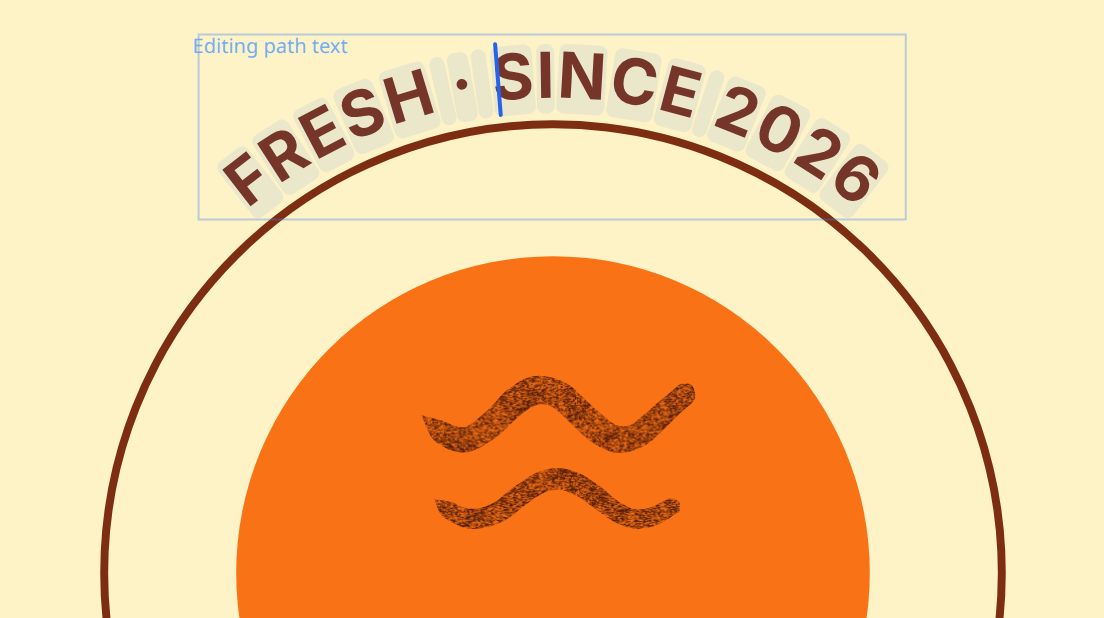
Put text on a path
- Write the text with the Text tool (T).
- Select the text, then Shift-click the shape it should follow.
- Choose Text → Type on Path….
Adjust
The Type on Path dialog changes the text live:
- Position — where along the path the text sits.
- Side offset — how far from the line.
- Align on path — start, center or end.
- Reverse direction and flip to the other side of the path.
Select the text (or its shape) and choose Type on Path… again to come back to these settings.
Edit the words
With the Text tool, click the curved text. While you type, a blue caret shows exactly where you are on the curve, the text glows softly, and selected letters are highlighted — so fixing one letter in the middle of a word is easy.
Move, copy and organize
- The text and its path behave as one object: dragging, nudging, copying or duplicating the text brings its path along.
- In the Layers panel they appear together under a Text on path header.
- Hide the path's stroke (no stroke) if you only want to see the text.
Detach
Text → Detach from Path turns it back into normal straight text.