
Workspace tour
Illusion has two faces. Simple Mode keeps the canvas big and the tools close for sketching. Studio Mode shows every panel for precise design work. Your document is the same in both.
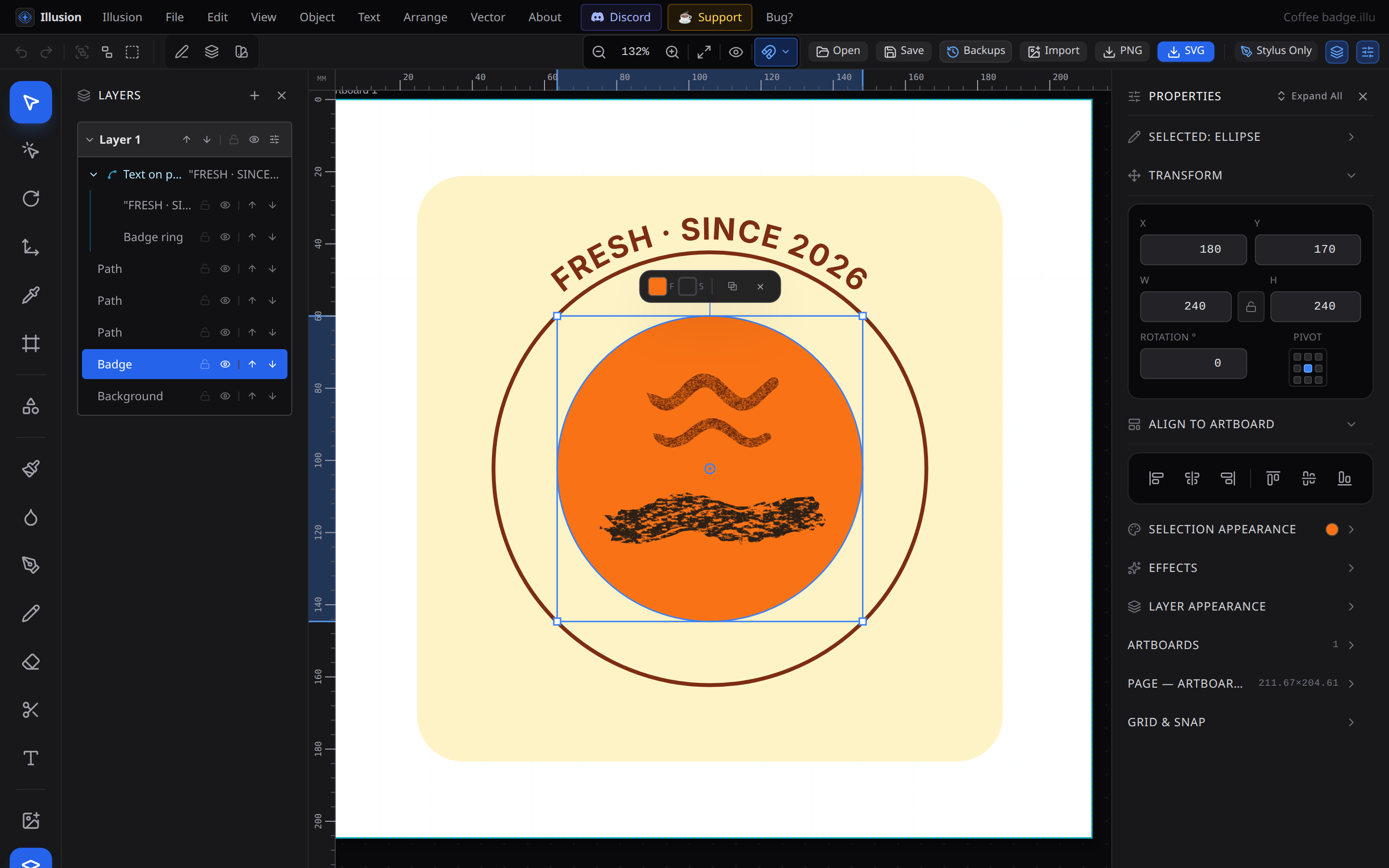
Simple and Studio Mode
- Simple Mode — a full-size canvas, a compact tool dock, colors and swatches one tap away, and a brush size slider. Ideal on a tablet.
- Studio Mode — the menu bar, the top toolbar, the Layers panel on the left and the Properties panel on the right.
Switch with the Simple Mode / Studio Mode button. On a tablet, the switch re-fits the artboard to the screen.
The parts of Studio Mode
| Area | What it does |
|---|---|
| Menu bar | File, Edit, View, Object, Text, Arrange and Vector commands. |
| Top toolbar | Undo/redo, actions for the current selection (combine, mask, outline…), zoom, and Open/Save/Export. Buttons show their name when you hover them. |
| Tool bar (left) | Select, Direct Selection, Rotate, Transform, Eyedropper, Artboard, Shapes, Brush, Fill, Pen, Pencil, Eraser, Slice, Text. |
| Layers | Every object in stacking order, with groups, visibility and locks. See Layers & groups. |
| Properties | Position and size, appearance (fill, stroke, gradients), brush and text settings for the selection or the active tool. Sections fold open and closed. |
| Rulers & grid | Toggle in View. Units cycle with Ctrl Shift U. |
Moving around the canvas
- Zoom: mouse wheel, Ctrl + / Ctrl -, or pinch on a touch screen.
- Fit the artboard: Ctrl 0.
- Pan: hold Space and drag, or drag with two fingers.
- Outline view: Ctrl Y shows thin outlines only — handy for finding hidden shapes.
Artboards
An artboard is a page. Use the Artboard tool (Shift O) to select, move and resize pages, or drag on empty canvas to add one. Click a page's name label to select it with any tool. Size, background, bleed and safe margins are in the Page section of the Properties panel.
Next: your first drawing.